Working with form data and role of initialData
FormEngine provides a flexible, reactive architecture for working with form data, allowing integration with other apps and UI libraries. In this article, we cover different ways to access form data, including using the initialData prop to prefill fields and programmatically reading or setting data.
FormEngine Data Flow
When you initialize a FormViewer, you pass it the initialData prop. This pre-fills all fields in the form with the given values (if provided). The structure of this data matches the object you can read via IFormData.data. When the form mounts, FormViewer maps initialData to the fields, which triggers an initial onFormDataChange event so your code sees the initial values in the form.
As the user enters or changes data, the same onFormDataChange callback fires with updated values. After that, FormEngine runs validation. For example, if some fields are invalid, you will first get an onFormDataChange event with the new data, and then in a subsequent step the formData.errors field is populated with error messages. You can also use a viewerRef to call formData.getValidationResult(), which returns any validation errors. If the result is empty or undefined, the form is valid.
const viewerRef = useRef<IFormViewer>(null)
const handleGetData = useCallback(async () => {
  let viewer = viewerRef.current

  if (viewer) {
    const formData = viewer.formData as IFormData
    const {data, errors} = formData
    const validatedData = await formData.getValidationResult()

    console.log('Form data:\n', data)
    console.log('Form errors:\n', errors)
    console.log('Validation:\n', validatedData)
  }
}, [])
Form data vs initialData
You can interpret IFormData.data as internal state, while initialData is external state. Both these objects are reactive which means changes to them will reflect on the form.
Getting the form data
Subscribing to Form Changes
FormEngine notifies your code whenever form values change by using the onFormDataChange callback. You pass a function to the FormViewer via its onFormDataChange prop. This function receives the updated form data and any validation errors each time a field changes. For example:
export const FormViewerExample = () => {
  // ...

  return (
    <>
      <FormViewer view={view} formName={"SampleForm"}
                  getForm={getForm} onFormDataChange={onFormDataChanged}
                  viewerRef={viewerRef}
                  initialData={initialData} actions={customActions}/>
      <div>
        <button onClick={processFormData}>Handle form data</button>
      </div>
    </>
  )
}
In this example, onFormDataChanged logs the data and errors each time a field updates. You can use this to react in real time to user input (e.g. enabling a "Save" button only when data changes).
To access form data we have several options here:
- Using viewerRef in imperative way.
- Subscribing to onFormDataChange event.
- With actions in specific use case.
Accessing Form Data via viewerRef
The FormViewer component is the core viewer that renders a form from JSON. To access the current form data, you can use a React ref on FormViewer. Assign a ref via the viewerRef prop:
import {useRef} from 'react';
import type {IFormViewer} from '@react-form-builder/core'
// ...

export const FormViewerExample = () => {
  const viewerRef = useRef<IFormViewer>(null)
  // ...

  return (
    <FormViewer view={view} formName={"SampleForm"}
                getForm={getForm} onFormDataChange={onFormDataChanged}
                viewerRef={viewerRef}
                initialData={initialData} actions={customActions}/>
  )
}
This lets you imperatively read viewerRef.current.formData at any time. For example, after a user fills out the form or on a button click. Here is function which handles formData.
export const FormViewerExample = () => {
  // ...

  const processFormData = useCallback(async () => {
    let viewer = viewerRef.current

    if (viewer) {
      const formData = viewer.formData as IFormData
      const {data, errors} = formData
      const validation = await formData.getValidationResult()
      const withErrors = !!validation && Object.keys(validation).length > 0

      setFormErrors(withErrors ? validation : EMPTY)

      console.log('Form data:\n', data)
      console.log('Form errors:\n', errors)
      console.log('Validation:\n', validation)
    }
  }, [])

  return (
    <>
      <FormViewer view={view} formName={"SampleForm"}
                  getForm={getForm} onFormDataChange={onFormDataChanged}
                  viewerRef={viewerRef}
                  initialData={initialData} actions={customActions}/>
      <div>
        <button onClick={processFormData}>Handle form data</button>
      </div>
    </>
  )
}
Please notice, validation result and errors are different entities. Validation provides all validations results, while errors indication only currently shown messages.
Listen onFormDataChange
FormEngine can notify your code whenever form values change. You do this by providing an onFormDataChange callback prop to FormViewer. This callback receives the updated data and any validation errors whenever the user modifies a field. For example:
export const FormViewerExample = () => {
  // ...

  const onFormDataChanged = useCallback((formData: IFormData): void => {
    const {data, errors} = formData
    console.log('onFormDataChanged:\n', data, '\n', errors)

    setAppLevelState((prev) => {
      let next = {
        ...prev,
        ...data
      }

      return isEqual(next, prev) ? prev : next
    })
  }, [])

  return (
    <>
      <FormViewer view={view} formName={"SampleForm"}
                  getForm={getForm} onFormDataChange={onFormDataChanged}
                  viewerRef={viewerRef}
                  initialData={initialData} actions={customActions}/>
      <div>
        <button onClick={processFormData}>Handle form data</button>
      </div>
    </>
  )
}
In this way, you can react to user edits in real time (e.g. enable a "Save" button only when data is valid). This is useful for live-preview or for enabling dynamic logic as the user types.
Inside actions
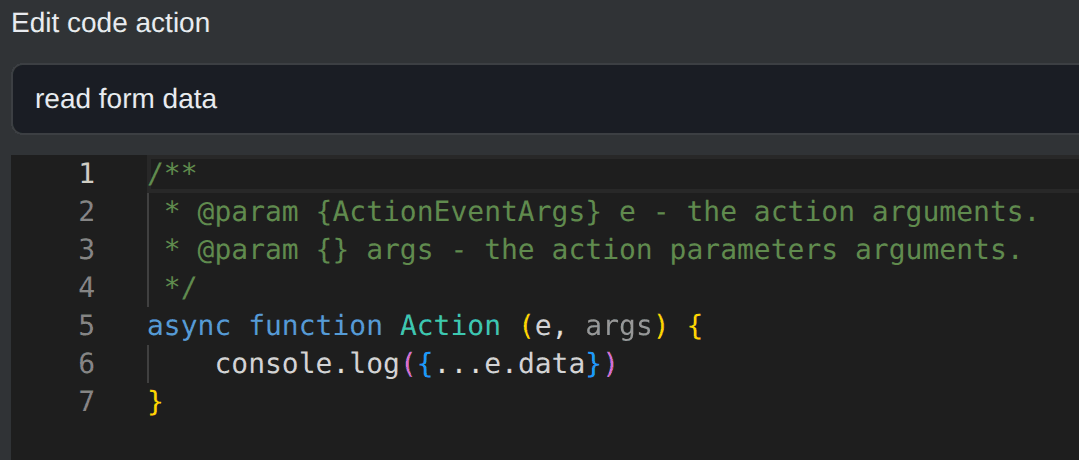
Inside action (custom or code action) you can access form data via event.data field.
const customActions = {
  logData: ActionDefinition.functionalAction(async (e) => {
    console.log({...e.data})
  })
}
/**
 * @param {ActionEventArgs} e - the action arguments.
 * @param {} args - the action parameters arguments.
 */
async function Action(e, args) {
  console.log({...e.data})
}
Setting the form data
Initial data
Sometimes you need to pre-fill the form with data from another source (for example, loading existing user info
or previous answers). FormEngine’s <FormViewer> supports an initialData prop: an object of field keys and values
to load into the form on initialization. Keys must correspond to key (or dataKey) prop of each field
For example:
<FormViewer
  initialData={{firstName: "Alice", age: 30}}
/>
initialData is a reactive property, so any changes to this object will reflect on the form. We will cover this case down bellow.
Update form data via viewerRef
Below is an example of the code that updates the form data:
export const FormViewerExample = () => {
  const viewerRef = useRef<IFormViewer>(null)

  // ...

  const loadData = useCallback(async () => {
    const response = await mockBackendGet()

    const viewer = viewerRef.current
    if (viewer) {
      const formData = viewer.formData as ComponentData
      for (const key in response.data) {
        formData.updateInitialData(key, response.data[key as keyof AppState])
      }
    }
  }, [])

  return <>
    <Buttons title={'Emulate backend'}>
      <button className={'button'} onClick={loadData}>Load</button>
    </Buttons>

    <FormViewer view={view} formName="SampleForm" getForm={getForm}
                onFormDataChange={onFormDataChanged} viewerRef={viewerRef}
                initialData={appLevelState} actions={customActions}/>

  </>
}
Update inside actions
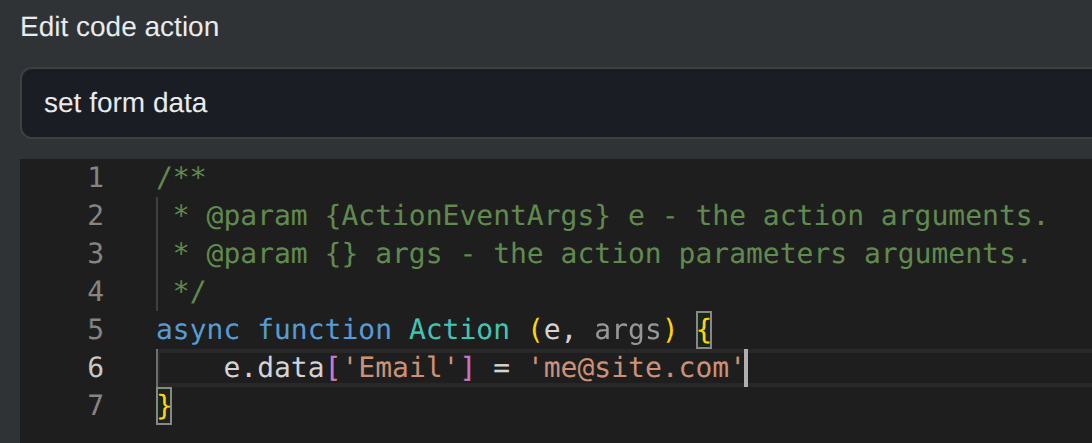
Inside the actions, you can change the form data directly:
const customActions = {
  suggestMessage: ActionDefinition.functionalAction(async (e) => {
    const message = await getMessage()

    e.data['Message'] = message
  }),
}
/**
 * @param {ActionEventArgs} e - the action arguments.
 * @param {} args - the action parameters arguments.
 */
async function Action(e, args) {
  e.data['Email'] = 'me@site.com'
}
Practical Use-Cases for initialData
The initialData prop is useful in many scenarios:
- Loading existing records: populate the form for editing a record retrieved from a database. Fetch the JSON data on mount and pass it into initialData.
- Prefilling user info: preload a user’s name/email if known. Users often expect forms to remember previous values.
- Multi-step forms or wizards: when moving between steps or embedding forms in other apps, you can pass shared state via initialData.
- Integration with other apps: if another app provides data (e.g. URL params, local storage, or a global state), just map that data into the form fields via initialData.
By combining initialData with form submissions or custom actions, you can create dynamic, data-driven forms. For example, load a JSON payload from your backend and pass it as initialData, then let the user make changes and submit the updated data back to the server.
initialData as app state
As initial data is reactive you can store and modify your app or component state locally and pass it to the FormViewer. Then data changed FormViewer will react to it as at the first time.
export const FormViewerExample = () => {
  const [appLevelState, setAppLevelState] = useState<AppState>(generateData())
  // ...

  const renewAppData = useCallback(() => {
    setAppLevelState(generateData())
  }, [])

  const suggestMessage = useCallback(async () => {
    const Message = await getMessage()

    setAppLevelState((prevState: AppState) => {
      return {
        ...prevState,
        Message
      }
    })
  }, [])

  return (<>
      <Buttons title={'Change initialData'}>
        <button className={'button'} onClick={renewAppData}>Recreate</button>
        <button className={'button'} onClick={suggestMessage}>Generate message</button>
      </Buttons>

      <FormViewer view={view} formName="SampleForm" getForm={getForm}
                  onFormDataChange={onFormDataChanged}
                  viewerRef={viewerRef}
                  initialData={appLevelState} actions={customActions}/>
    </>
  )
}
Clicking Recreate or Generate message updates the appLevelState, which is passed
into initialData.
The form re-renders with the new values in appLevelState.
Example: use backend as datasource
Often you’ll load initial form data from a backend. For example, you might fetch existing answers and then set them as initialData. Here’s a simplified example using mock async calls:
// ...
let mockBackendStore = generateData()

const mockBackendGet = async () => {
  await new Promise(r => setTimeout(r, 300))

  return {
    generated: +new Date,
    data: mockBackendStore
  }
}

const mockBackendPost = async (data: any) => {
  await new Promise(r => setTimeout(r, 300))

  mockBackendStore = data

  return {
    status: 'success',
    data: mockBackendStore
  }
}

export const FormViewerExample = () => {
  // ...
  const loadData = useCallback(async () => {
    const response = await mockBackendGet()

    setAppLevelState(response.data)
    setPendingChanges(EMPTY)
  }, [])

  const sendData = useCallback(async () => {
    if (havePendingChanges) {
      const result = await mockBackendPost(pendingChanges)

      if (result.status === 'success') {
        setPendingChanges(EMPTY)
      }
    }
  }, [havePendingChanges])

  return <>
    <Buttons title={'Emulate backend'}>
      <button className={'button'} onClick={loadData}>Load</button>
      <button className={'button'} onClick={sendData} disabled={!havePendingChanges}>Send</button>
    </Buttons>

    <FormViewer view={view} formName="SampleForm" getForm={getForm}
                onFormDataChange={onFormDataChanged}
                viewerRef={viewerRef}
                initialData={appLevelState} actions={customActions}/>
  </>
}
In this code, clicking Load fetches data from the mock backend and sets it
as initialData.
The form is populated with this data. User edits are tracked
via onFormDataChange into pendingChanges,
enabling the Send button. Clicking Send posts the changes back to the backend.
Example: embed FormViewer in your application
You can embed FormViewer inside your application and pass data back and forward between FormViewer internal state and app-level state.
export const FormViewerExample = () => {
  const [appLevelState, setAppLevelState] = useState<AppState>(generateData())
  const [appLevelErrors, setAppLevelErrors] = useState<Record<string, string | Array<string>>>(EMPTY)

  const suggestMessage = useCallback(async () => {
    const Message = await getMessage()

    setAppLevelState((prevState: AppState) => {
      return {
        ...prevState,
        Message
      }
    })
  }, [])

  const onFormDataChanged = useCallback((formData: IFormData): void => {
    const {data, errors} = formData

    setAppLevelState((prev) => {
      let next = {
        ...prev,
        ...data
      }

      return isEqual(next, prev) ? prev : next
    })
  }, [])

  // ...

  return <>
    <Buttons title={'Change initialData'}>
      <button className={'button'} onClick={suggestMessage}>Generate message</button>
    </Buttons>

    <FormViewer view={view} formName="SampleForm" getForm={getForm}
                onFormDataChange={onFormDataChanged} viewerRef={viewerRef}
                initialData={appLevelState} actions={customActions}/>
  </>
}
Here we are relying on initialData reactivity and sync back form changes to the top level.
Source code
Full source code for the examples in this article is available on our open-source GitHub repository.